Showing posts with label computer tricks. Show all posts

Saturday, December 24, 2011

Invert Mouse Direction using Sakasa

Hello friends, do you want to try some trick with your mouse? If yes, then try Sakasa mouse. This is a cool program which will helps you to change your mouse cursor direction. This is a small program for fun; run this to your computer then try to control your mouse cursor.

About Sakasa Mouse.:
Sakasa mouse is a program that will invert your mouse direction; that means if you move your mouse cursor Left, the cursor will move Right. If you move Up it will move Down. If you want to stop this program then go to tray icon and Exit it. This is a very small program for your computer. Try this in your Friend's computer and enjoy.

Monday, December 12, 2011

Use this and Safe your Eyes

I am going to introduce a awesome software which can helps you to protect your eyes from computer screen light.
Everyone notice that how people use there computer for net surfing and many more works at late night. During the day time computer screen looks good for eyes but at night time the computer screen light hurts our eyes. There is a small software called F.lux, that can control the scree light of your computer to protect your eyes.
How to use this.:
  • First download: F.lux
  • Install this software in your computer (This is very simple).
  • F.lux is automatic run when you start up your computer. It's make your computer screen deep at night time.
  • This is a amazing software, enjoy this.

Monday, December 5, 2011

Insert Watermark to MS-Word 2007/2010

You can insert watermark to your MS-word 2007/2010 document. This is a very simple trick in ms-word.
To giving watermark to your document means your document is copy protected. You can add two type of water in your document; Photo watermark and text watermark. Follow the below steps to watermark to your document.

How to Watermark.:
  • Open your ms-word document which you want to watermark.
  • Select the Page layout tab from the top menu.
  • In Page Background group, select Watermark.
  • Now you can select pre-defined watermark, or if you wish to use your own watermark then select Custom Watermark.
  • A new window will be pop up.
  1. To insert text water mark select Text Watermark.
  2. Type your own text in the Text field.
  3. You can also customize your watermark, such as Size, Text color etc. then click OK. Now your Text watermark is ready.
  • Look at the below watermarked text.

  1. For picture Watermark select Picture watermark button.
  2. Select your picture from your hard drive and click on OK. Your Picture watermark is ready.

Tuesday, November 22, 2011

Update Windows O/S Offline

If you are using windows O/S and you have no internet or slow connection, them how will you update your O/S.
By updating your O/S it will performs better than before and new features will be added. But, in slow connection it will take a long time to update. There is a simple trick to update your O/S offline, means you can download the update database in cyber cafe or other speed connection network then install it into your computer.

That software is called AutoPatcher Updater. AutoPatcher updater is designed to keep your system up to date. Just select from the list the available updates for your system and download them into your hard drive.

How to Update Offline.:
  • First download: AutoPatcher Updater
  • Then install it to your computer or in cyber cafe computer using pendrive.
  • It will prompt you to select your O/S for which you want to download.
  • Now select your O/S whether it is 32-bit or 62-bit. if it is 32-bit then select X86 otherwise select X64.
  • A list of all updates for your O/S will be shown.


  • Select all then click on Download buton.
  • After finishing the download just Copy/Paste all updates into your Pendrive.
  • Now insert your pendrive into your computer and install tem.
  • This is the best method to install your updates offline.

Thursday, November 17, 2011

Make Adobe Reader to Speak

Adobe reader is the free software for viewing, printing and commenting on PDF documents. It is the only PDF file viewer that open and interact with all types of PDF content, including forms and multimedia. Today Hacker University teaches you how to make your PDF document speak. Many of you know that trick, but it is for those who don't know that. It is very simple, and very helpful when you are reading story based PDF document.

How to do that.:

  • First Doenload: Adobe Reader X
  • Open your PDF document.
  • Then click on View button in menu bar.
  • Choose Read out loud in drop down menu and click on Active read it loud.
  • Or you can use shortcut: Shift+Ctrl+V (Read this page only)
                                         Shift+Ctrl+B (Read to end of document)

  • Look at the below screenshot.

Now Adobe reader read your document in loud voice. Enjoy reading...

Sunday, November 13, 2011

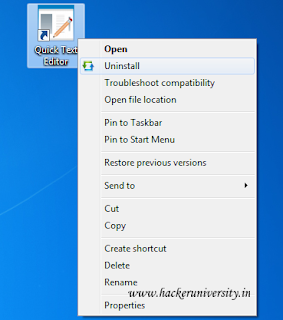
Add Unstall Option in Right Click Menu

If you want to Uninstall a program, then you have to go Control Panel and then uninstall a program.
This is a very lengthy process for those who are trying New softwares daily. Now you can add a Uninstall option in your Right click menu with a free software.

Using Menu Uninstaller you can uninstall/Remove any program with a single Right Click on the Shortcut. It is compatible with Windows XP, Vista and Windows 7.


How to Use Menu Uninstaller.:

  • First Download: Menu Uninstaller
  • Now install it in your PC/Laptop(Installation process is very simple).
  • Now, Uninstall option will available in Right Click Menu.
                                    DOWNLOAD HERE
To Uninstall/Remove any program just Right Click in that Program shortcut and click in Uninstall.

Tuesday, November 8, 2011

Temporarily Lock your PC when Someone Enter Wrong Password

When you are away from your computer someone may try to login into your Computer by guessing your Password.
Now we will use windows security settings to temporarily Lock your Computer if Wrong password entered more then couple of times. This will make it harder to guess your password as after 3 wrong passwords your system will get locked for 30 minutes.

How to Lock your PC when Wrong Password Attempt.:
1. In the Start up  Search box type Local Security Policy and press Enter.


2. From the left window pane Expand Account Policies and select Account Lockout Policy option in it.
3. Now in the Right window pane look for the Account lockout threshold option and Double Click on it.


4. A New window will be open, then give the Value after how many invalid password attempts you want to lock your computer.


5. Click on Apply button and a window will be open telling you Account will lock down for 30 minutes. You can also change the time settings by Clicking on the Reset account lockout counter according to your need.
6. Now click OK.

That's it. Now your computer will be temporarilly Locked for someone that you had set in the settings when someone will enter wrong Password.
(For any problem Comment below)

Monday, November 7, 2011

Password Protect USB Ports

Sometimes we want to Password Protect our USB ports, so that is no one can Insert or Transfer data from/to PC via USB drive.
This can be very useful if you have confidental data in your system and don't want it to share with anyone. MyUSBonly is third party software which can disable and Password Protect your USB ports.

Features of MyUSBonly.:
  • Prevent data loss while you are away from home or computer.
  • Stop information leakage such as documents, photos and videos.
  • Prevent un-trusted USB storage devices from various users.
  • Secretly log all USB connect and disconnect activity.
  • Get an email notification mesage when an unauthorized USB storage device is connected to your PC.
How to Use it.:
  • After installation of this software you will see a USB icon in your system Tray. Click on it and select General Setup.
  • Type your Password and click on Allow button. By default the Password is 0000 and you can change it anytime.


    • Now a new window will open and you can costumize its settings according to your need.


                                     DOWNLOAD HERE

    Sunday, November 6, 2011

    Fix Corrupt Files in Windows 7

    If your Windows 7 OS is corrupt or damage you can fix it by using simple steps.
    This tips is for all those who have Windows 7 and t5hose wants to fix their corrupted files in Windows 7. My computer also had been suffered from this kind of problem and I maintained it through the help of following tips. Well this is a good and full proof way to fix corrupt file.

    How to fix Windows 7.:

    1. At first, Turn on your system/Computer.
    2. Then Login as Administrator.
    3. Click Start button and go to All programs.
    4. Go to Accessories.
    5. After that Right click on Command Prompt and select "Run as Administrator".

    6. Now just type "SFC/SCANNOW" in the command prompt and hit or press the Enter button.
    7. It will take several minutes to scan for damaged systems files and verifies its integrity.
    8. Don't panic. Wait till the process of scanning is 100% or fully complete.
    9.After the process finished, close the command prompt window and Reboot/Restart your system.
    Now you system is fully Fixed.
    (If any problem comment below)


    Friday, November 4, 2011

    Easy way to Change Startup Sound in Windows 7

    We regularly change our Desktop Themes to get refreshing feel, but listining the same Startup sound.
    If you are one of those who love to costumize the complete Look and Feel of your windows as per your taste then you will be glad to know that you can easily change the startup sound.

    There are 2 ways to change the Startup Sound in Windows 7:
    1. Using Freeware Third Party Softwares
    2. Registry Hacks
    Changing the registry is usually tricky for most users and any wrong change can create problems in your OS. Registry changes are recommended only when you have no way to solve your problems.

    The best and esgiest way is to use free Third Party Softwares as they are more secure and can easily configure your system as you want without putting any sweat. Moreover these softwares are not bulky and doesn't consume too much system resources.

    Changing Windows 7 Startup Sound.:
    • Download Windows Startup Sound Changer. It is tiny (Only 318 kb) and portable (Doesn't require installation) Software.
    • Open the Software and Click on Replace Button.


    • Select your favorite Sound or Song (Must be in .wav extension).
    You can also restore the Default sound at any time by clicking on Restore button.
                                        DOWNLOAD HERE
    (For any problem or help comment below)

    Mcafee Antivirus 2012 with 6 month Activation (Download)

    Mcafee Antivirus Plus 2012 provides an all round protection from viruses, tarjons and spywares.
    It cost $49.99 for 1 year subscription on Mcafee Antivirus Plus 2011, but you can now get it FREE for 6 months through a special promotion offer.

    There are some new features which have been added in the 2012 edition, like Exclusive Anti-bot Protection to block botnet software, Removable Drive Scan and Pre-install scan.

    Here are complete features of Mcafee Antivirus Plus 2012.:
    • Complete Anti-virus, Anti-spyware, and Anti-malware
    • Real-time safeguard
    • Two-way Firewall
    • Safe searching and shopping
    • Fast Start-up and Scan time
    • Digital data Shredder
    • PC Tune-Up
    How Download Mcafee Antivirus 2012 with 6 month Activation?


    • Click in Get Started Now button and create an account with valid Email Address
    • Active your account by click on confirmation link on your email
    Note: This is a limit time offer

    Thursday, November 3, 2011

    Create a Desktop shortcut ICON for for Safety Remove Hardware Devices

    When we plugin any External storage device like USB/Memory card etc. and Transfer data from /to it.
    If yoyr external hatdware is used by any background process and you remove the hardware directly it may corrupt the data.

    You should always Safety Remove the hardware device to assure that your data is safe. But most of the people usually forget to do the same. You can create shortcut to safety remove hardware device on your Desktop, which is more visible and can be easily used to remove the hardware devices.

    How to create a Desktop Shortcut for Safety Remove Hardware Devices:
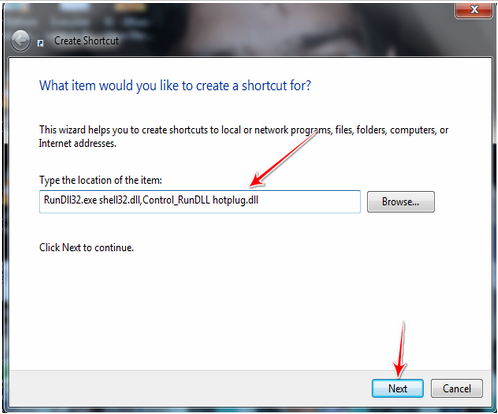
    • Right click on your Desktop and click on New.
    • Now choose Shortcut option from the list.


    • In browse location just Copy/Paste the following Red text.
    RunDll32.exe shell32.dll,Control_RunDLL hotplug.dll
    • And click on Next button.


    • Now it will ask you the Name of the shortcut. Name it some thing like Safety Remove USB and then click on Finish button.


    • There will a Shortcut Icon on your Desktop, Just double click on it and your External Media will be Removed Safely.


    This Shortcut can very helpful to you when your safety Remove icon got Disappear from notification area.

    Tuesday, November 1, 2011

    Install Windows 8 devlopers preview using USB drive

    Microsoft release the Windows 8 devlopers preview which is the best tested OS from microsoft.
    You can download the iso image file from microsoft site, but how to install Windows 8 with USB drive?


    If you want to install Windows 8  with USB drive in your laptop or PC, then follow the below steps.
    First you have to download the iso image file, download it below.:
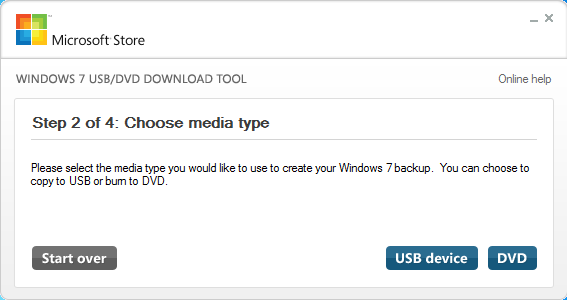
    Now Download Windows7 USB/DVD tool.:
    Step 1.: Install Windows7 USB/DVD tool and open it, Now browse for windows 8 iso file and click NEXT.


    Step 2.: Select USB in creating bootable image.


    Step 3.: Plug in USB and browse the USB, Now click Being Copying.


    Step 4.: Windows 8 files now be copying to USB from image.


    Step 5.: Now simply Restart your computer and boot your computer via USB drive.
    For more information Click on Below link,
                                                      VISIT HERE
    (For any problem comment below)

    Monday, October 31, 2011

    Adobe Photoshop CS5 Serials and Patch (Download)

    Searching for Adobe Phothshop CS5 extended Serial numbers? Hacker University brings for you that working keys.


    The newest version of Adobe Photoshop CS5 Extended delivers all state of the art editing, compositing, and graphic design capabilities in industry. Photoshop CS5 is a breakthrough tool for 3D design and motion editing.


    SERIALS.:
    1330-1771-7141-3153-0087-6681
    1330-1827-3174-7887-5208-3522
    1330-1369-8596-4577-9849-7340
    1330-1026-2225-2227-4683-1211
    1330-1757-1759-5963-2228-5467
    1330-1873-2979-8304-7684-2340

    Click on below link and download the Keygen generator and Path maker.:
                                           DOWNLOAD HERE
    (For any Problem comment below)