Saturday, November 5, 2011

Get a Free .in Domain for 1 year from Google

Are you interested to get a free domain ? Then you can get a .in domain from google with 1 year free hoasting.
Google in partnership with HostGator and ICICI bank, revealed a new service called India Get Online . Where you can setup for a Business or a personal use for free. With this amazing offer you will get a .in domain + webhosting for 1 year Free by Host gator.

Now everyone will try to get Domains, free of cost. You will register a free .in domain name and you have to provide them with a valid PAN card numbar and every individual is provided with a single PAN card number, so he can Register 1 domain at a time.

India Get Online Offer.:

  • A free, easy to build, professional website
  • A free .in domain name and Hosting for 1 year
  • Free email addresses
  • Free online tools and resources
So, if you want to change the hosting you can do that by changing your Host from Hostgator to anyone. Your website will also be integrated with google apps and you can take benefit of every google products. After 1 year if you want to continue your website then you have to renew your service with Hostgator with special Discount offer.

Friday, November 4, 2011

Hide Folders in NOKIA Jave Phones without Software

Are you intrested to hide folders in your phone? If yes, there is a very interesting solution to hide folders in your phone without any software.
This trick can be used for NOKIA, Samsung, Motorola, LG phones. This only requirement that your phone support java which almost all mobile phones support now.

If your phone support JAVA then follow the below steps to Hide folders in NOKIA java phones without software.:
  1. Create any New Folder or you can use any existing folder that is to be hidden.
  2. Rename the folder to any name with the extension of .jar like if I want to hide My images folder then I will Rename it as Images.jad
  3. Now create a new folderwith the same name in the same directory but with the extension of .jar So, I would create the folder with the name Images.jar
  4. Thats it!! My original Images folder which has been renamedwith .jad gets hidden and only folder with .jar extension is visible which is Empty. So my data is protected/hidden from unwanted eyes.
Now, we have to learn how to Open these hidden folders. To unhide these folders follow the below step.:
  1. To unhide the original folder you have to Remove/Delete the .jar extension from the new folder and your original folder with all the files and with .jad will become visible.
(For any help comment below)
 

Easy way to Change Startup Sound in Windows 7

We regularly change our Desktop Themes to get refreshing feel, but listining the same Startup sound.
If you are one of those who love to costumize the complete Look and Feel of your windows as per your taste then you will be glad to know that you can easily change the startup sound.

There are 2 ways to change the Startup Sound in Windows 7:
  1. Using Freeware Third Party Softwares
  2. Registry Hacks
Changing the registry is usually tricky for most users and any wrong change can create problems in your OS. Registry changes are recommended only when you have no way to solve your problems.

The best and esgiest way is to use free Third Party Softwares as they are more secure and can easily configure your system as you want without putting any sweat. Moreover these softwares are not bulky and doesn't consume too much system resources.

Changing Windows 7 Startup Sound.:
  • Download Windows Startup Sound Changer. It is tiny (Only 318 kb) and portable (Doesn't require installation) Software.
  • Open the Software and Click on Replace Button.


  • Select your favorite Sound or Song (Must be in .wav extension).
You can also restore the Default sound at any time by clicking on Restore button.
                                    DOWNLOAD HERE
(For any problem or help comment below)

Mcafee Antivirus 2012 with 6 month Activation (Download)

Mcafee Antivirus Plus 2012 provides an all round protection from viruses, tarjons and spywares.
It cost $49.99 for 1 year subscription on Mcafee Antivirus Plus 2011, but you can now get it FREE for 6 months through a special promotion offer.

There are some new features which have been added in the 2012 edition, like Exclusive Anti-bot Protection to block botnet software, Removable Drive Scan and Pre-install scan.

Here are complete features of Mcafee Antivirus Plus 2012.:
  • Complete Anti-virus, Anti-spyware, and Anti-malware
  • Real-time safeguard
  • Two-way Firewall
  • Safe searching and shopping
  • Fast Start-up and Scan time
  • Digital data Shredder
  • PC Tune-Up
How Download Mcafee Antivirus 2012 with 6 month Activation?


  • Click in Get Started Now button and create an account with valid Email Address
  • Active your account by click on confirmation link on your email
Note: This is a limit time offer

Thursday, November 3, 2011

Create a Desktop shortcut ICON for for Safety Remove Hardware Devices

When we plugin any External storage device like USB/Memory card etc. and Transfer data from /to it.
If yoyr external hatdware is used by any background process and you remove the hardware directly it may corrupt the data.

You should always Safety Remove the hardware device to assure that your data is safe. But most of the people usually forget to do the same. You can create shortcut to safety remove hardware device on your Desktop, which is more visible and can be easily used to remove the hardware devices.

How to create a Desktop Shortcut for Safety Remove Hardware Devices:
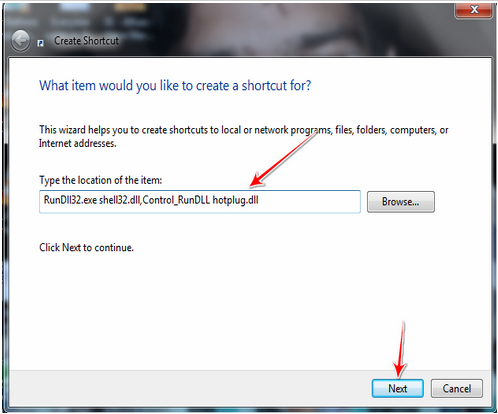
  • Right click on your Desktop and click on New.
  • Now choose Shortcut option from the list.


  • In browse location just Copy/Paste the following Red text.
RunDll32.exe shell32.dll,Control_RunDLL hotplug.dll
  • And click on Next button.


  • Now it will ask you the Name of the shortcut. Name it some thing like Safety Remove USB and then click on Finish button.


  • There will a Shortcut Icon on your Desktop, Just double click on it and your External Media will be Removed Safely.


This Shortcut can very helpful to you when your safety Remove icon got Disappear from notification area.

Wednesday, November 2, 2011

Control a Remote Computer Using Google Chrome

We have shown you how to go remote with friends and family before using teamviewer, when your computer crashes.
In most cases you need to install software or have a special service running in background.With chrome remote desktop, all you need your chrome browser running to be able to take control and share your screen. Follow the below steps.:

1) First you have to install Google Chrome.:


2) Then Install the Chrome Remote Desktop Extension Beta.:


3) During the installation you will be askad to authorize the app to have access to view your email address, view your remote desktop computer, and view and send chat message.:


4) After installation, Open a new tab in chrome and click the Chrome remote desktop Beta app.:


5) Click Share this Computer and a 12 digit code will be generate for you.:


6) This is a one time code that someone can access your computer. From the other computer, click access a shared computer and type the first code (Space are not necessary).:


7) Give it a little bit and the tab will be change to the other computer's desktop. While in this mode computer being shared can either push the disconnecr button, Ctrl+Alt+Esc, or close the google chrome tab to end the session.:


8) If you have trouble connecting to the remote computer or it hangs when saying veryfying access code, try allowing ports 443 and 5222 to have inbound rules in your windows firewall using both UDP and TCP.:


Click the below link to download.:
                                        DOWNLOAD HERE

Tuesday, November 1, 2011

Install Windows 8 devlopers preview using USB drive

Microsoft release the Windows 8 devlopers preview which is the best tested OS from microsoft.
You can download the iso image file from microsoft site, but how to install Windows 8 with USB drive?


If you want to install Windows 8  with USB drive in your laptop or PC, then follow the below steps.
First you have to download the iso image file, download it below.:
Now Download Windows7 USB/DVD tool.:
Step 1.: Install Windows7 USB/DVD tool and open it, Now browse for windows 8 iso file and click NEXT.


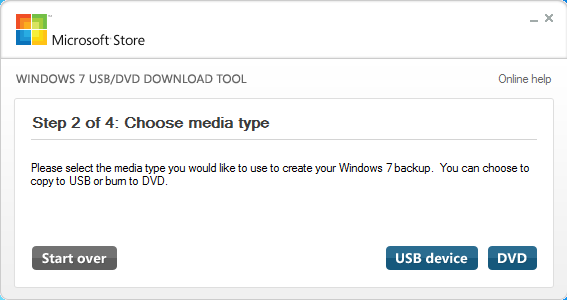
Step 2.: Select USB in creating bootable image.


Step 3.: Plug in USB and browse the USB, Now click Being Copying.


Step 4.: Windows 8 files now be copying to USB from image.


Step 5.: Now simply Restart your computer and boot your computer via USB drive.
For more information Click on Below link,
                                                  VISIT HERE
(For any problem comment below)